These are the steps for lodging once submissions open. That's when the Department puts the plans on exhibition, which could be as early as December, and you'll have 14 days. Until then, Part A shows how to prepare yours.
Your submission. Your Bronte. Your voice.
How to prepare now, and lodge in the 14 days
122–128 Hewlett Street, Bronte · SSD-124072740 · Bronte Community Association Inc.
Part B. When it opens: lodge it
This guide has two parts: Part A, what to do now (sections 1 to 7), and Part B, how to lodge once it opens (sections 8 and 9).
8. Lodge on the NSW Planning Portal, not by email
An email to the Department is not a submission. It must be lodged on the NSW Planning Portal. It takes about ten minutes once your points are written.
When it opens, review what the plans say about your issues, refine your draft, and then:
- 1
Open the project page. Use the link in the Department's alert or BCA's email, or go to brontecommunityassociation.org.au/submit.

During exhibition, the project page has a "Make a submission" button. - 2
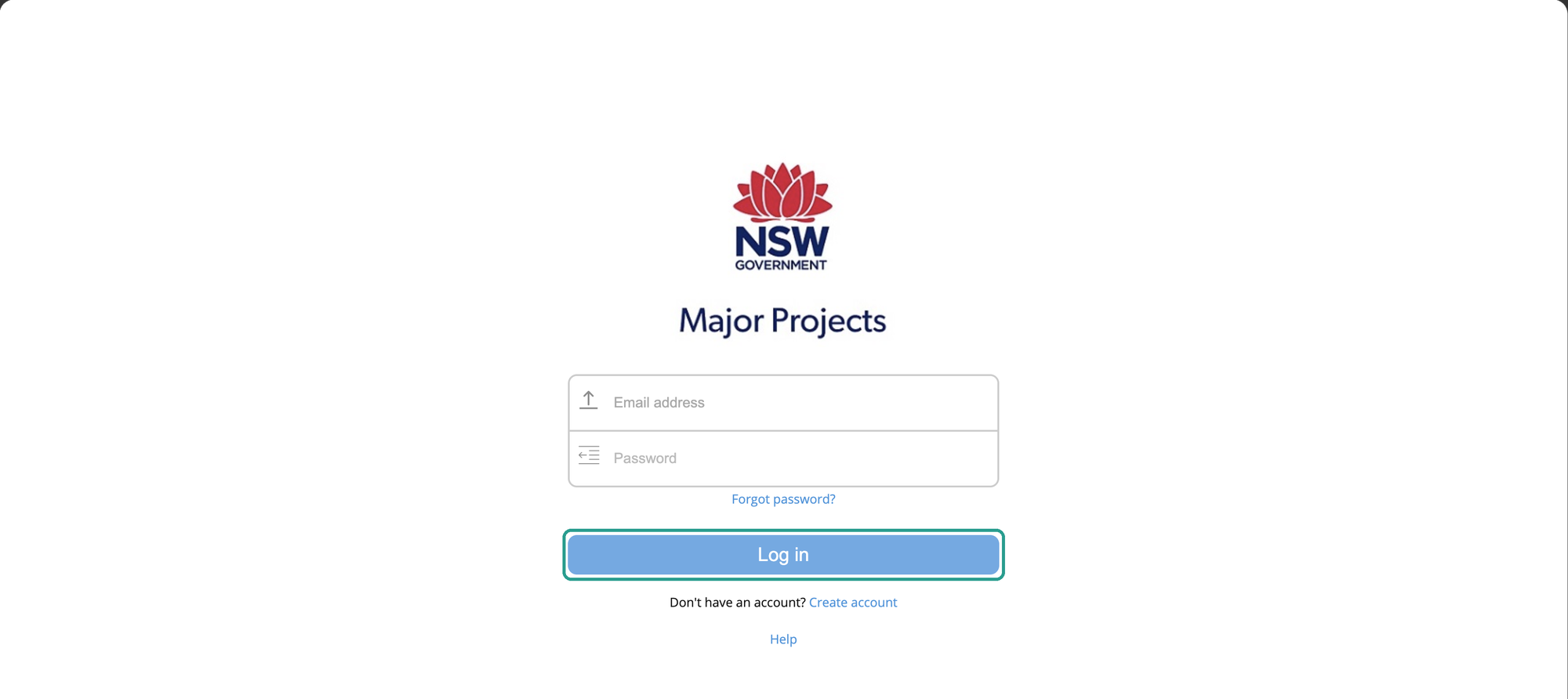
Click "Make a submission", and log in.
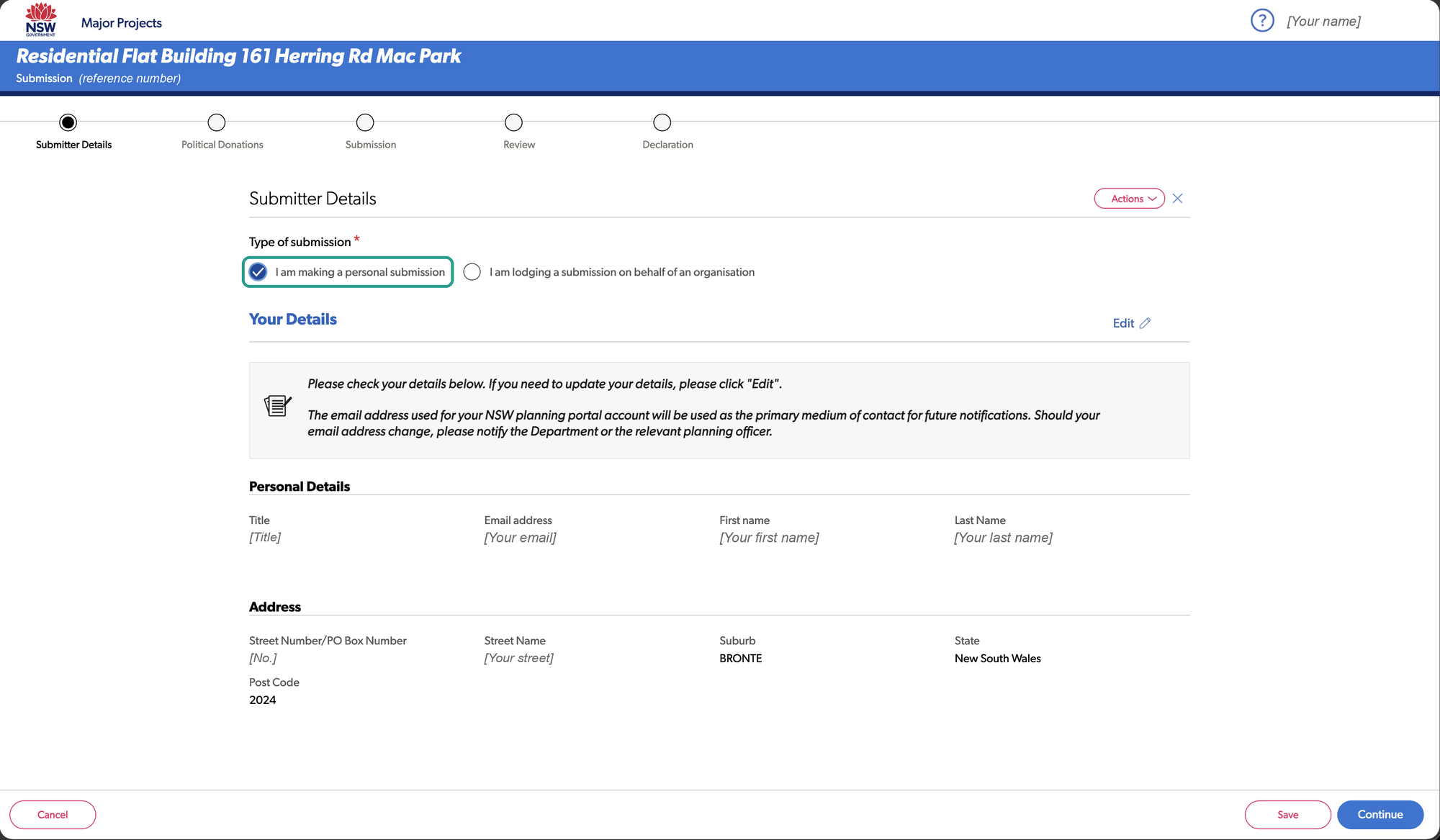
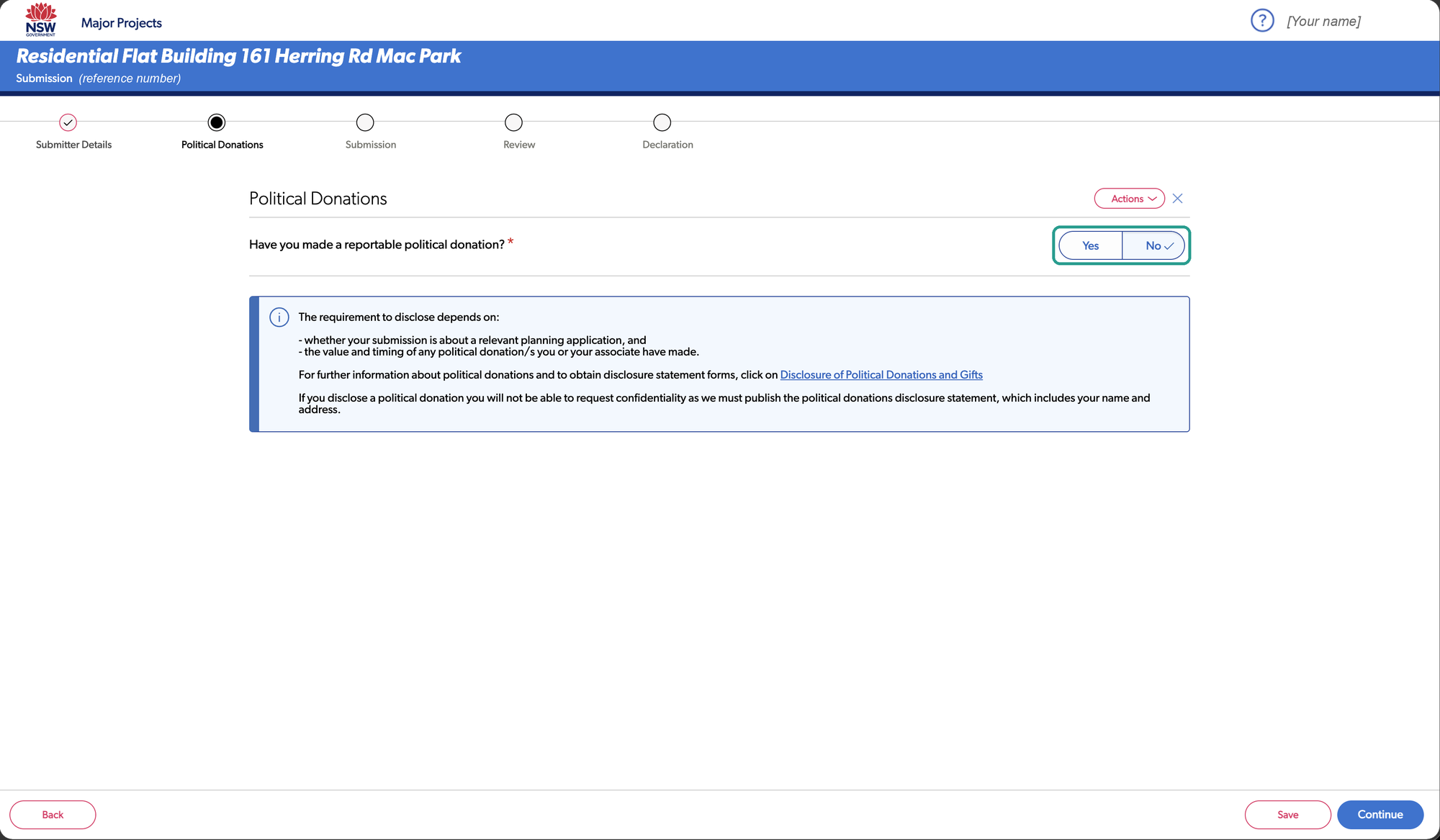
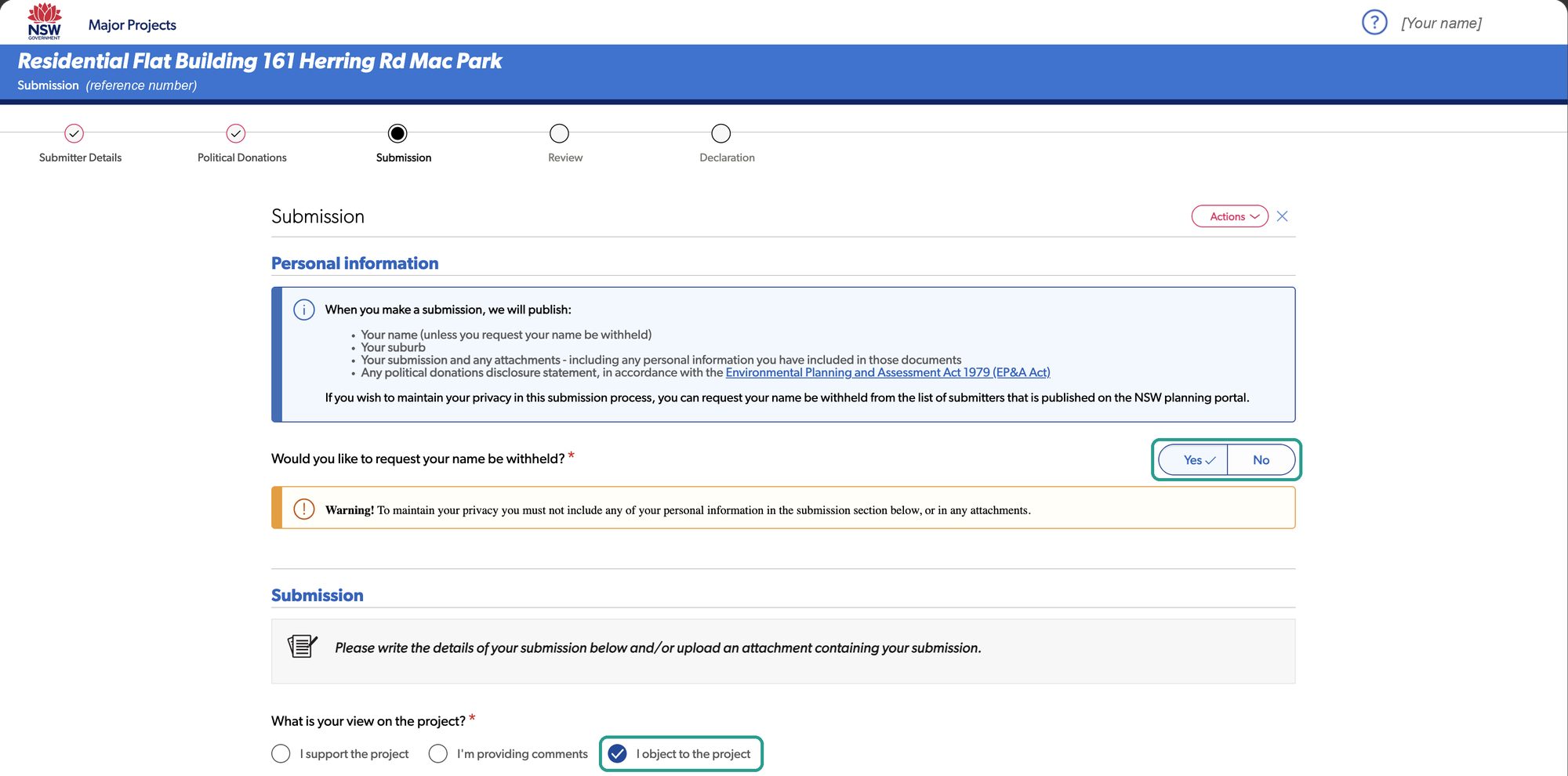
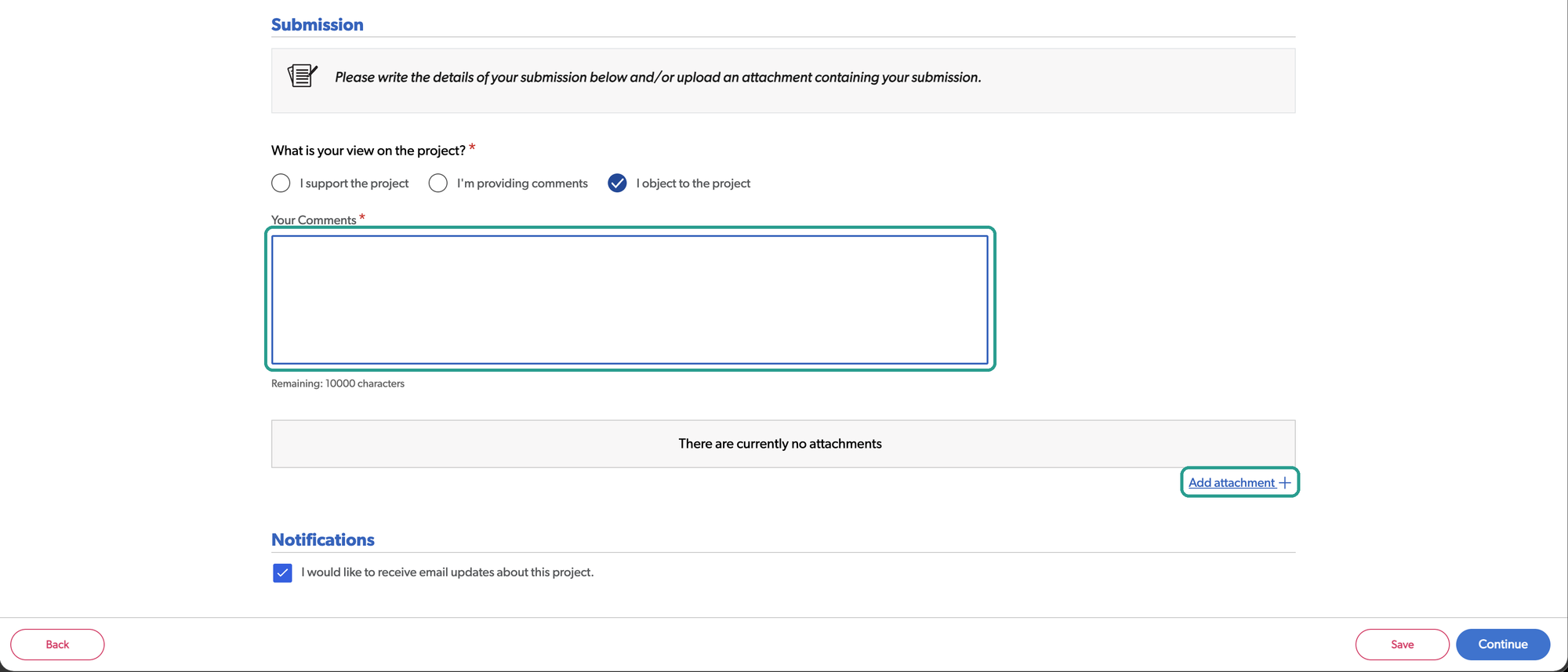
Screens from another project on exhibition. The Hewlett Street form is the same.
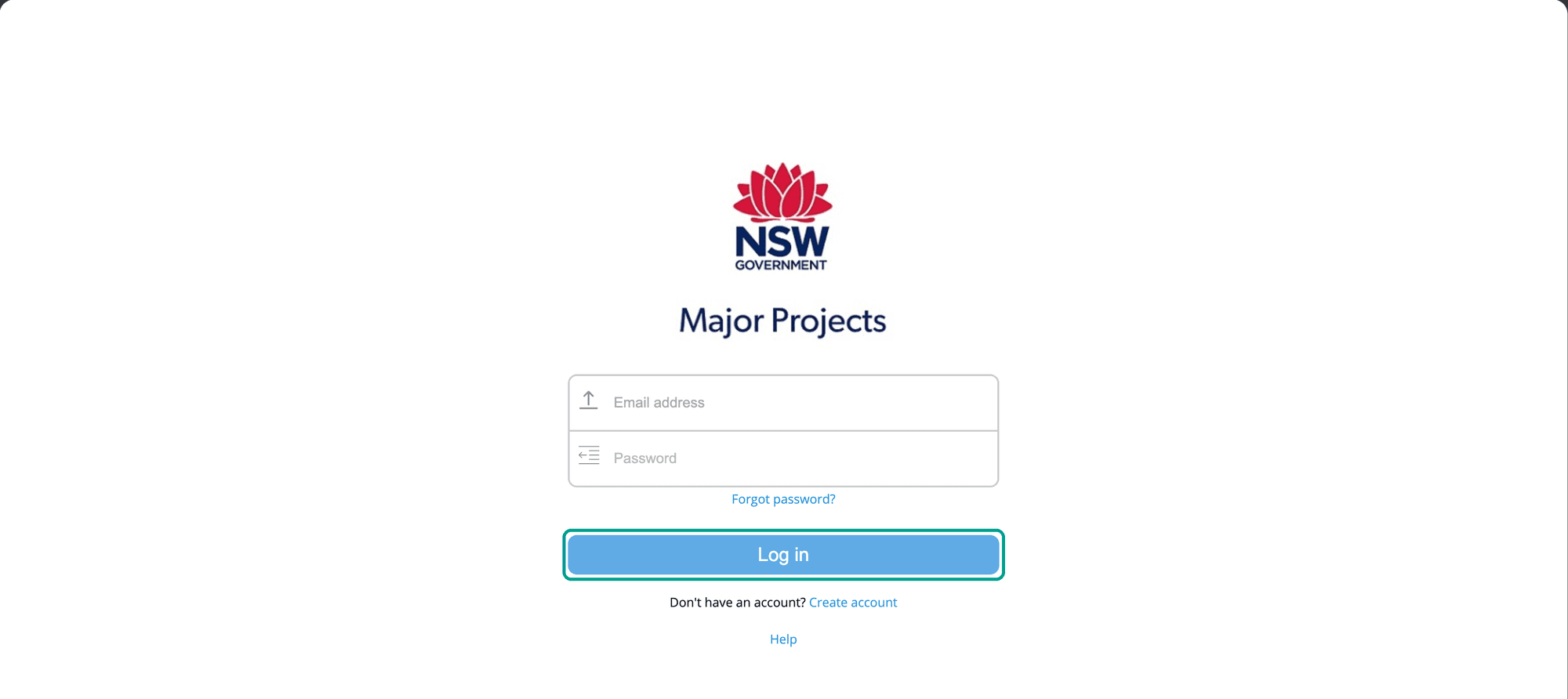
Log in. - 3
Check your details, choose a personal submission, and answer the political donations question.
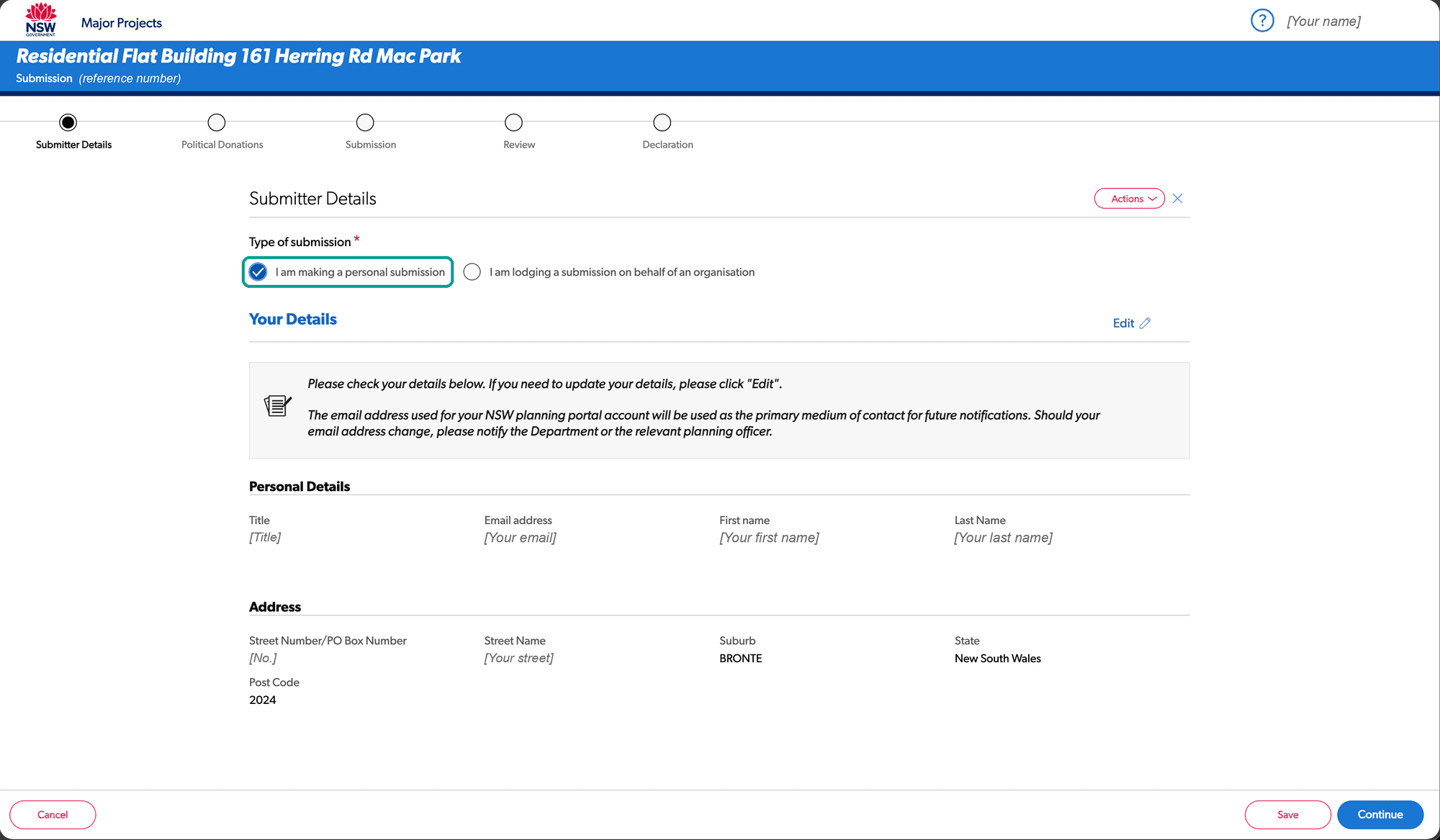
Choose a personal submission and check your details. 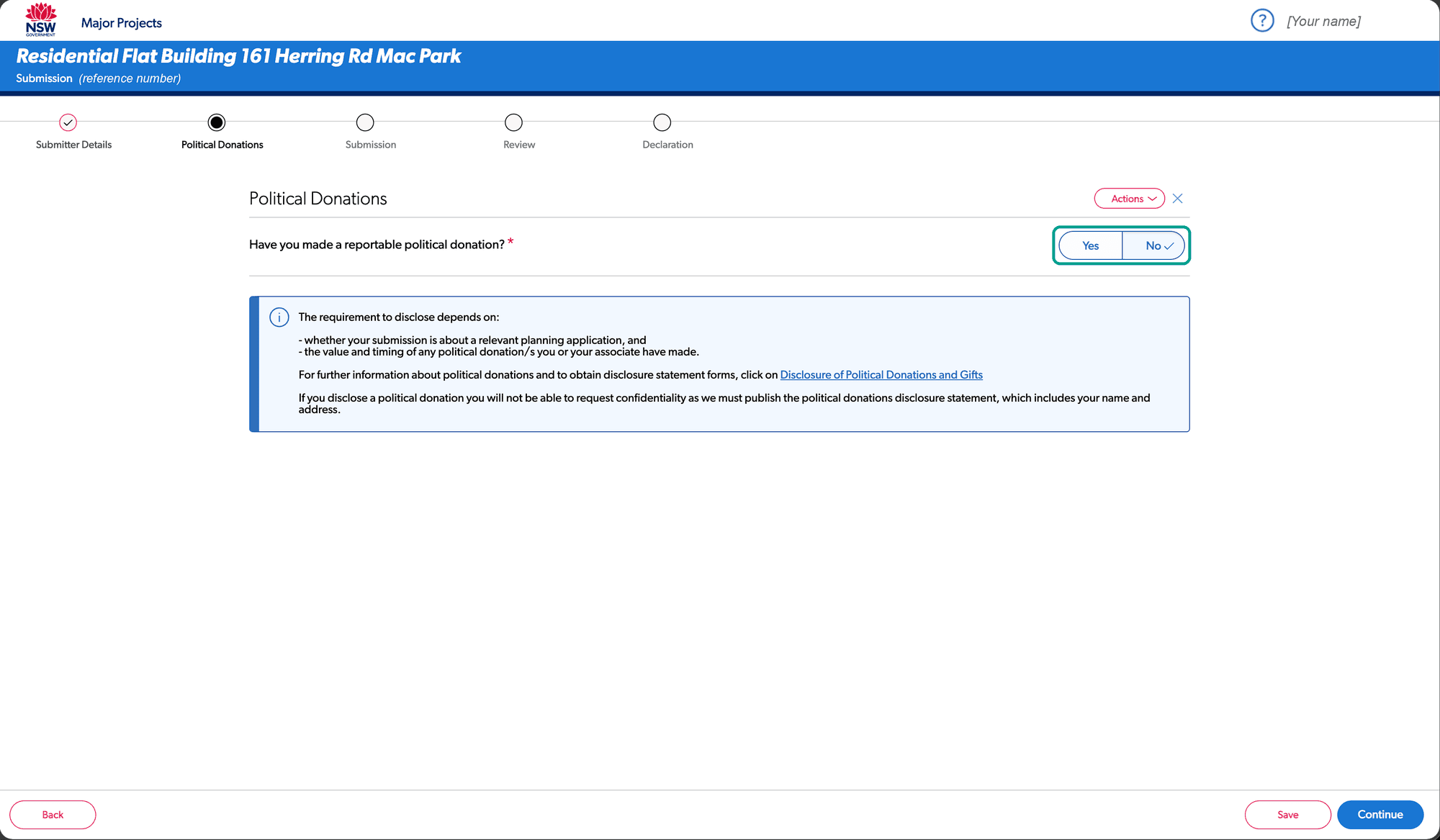
Answer the political donations question. - 4
Choose whether to withhold your name, and tick "I object to the project".
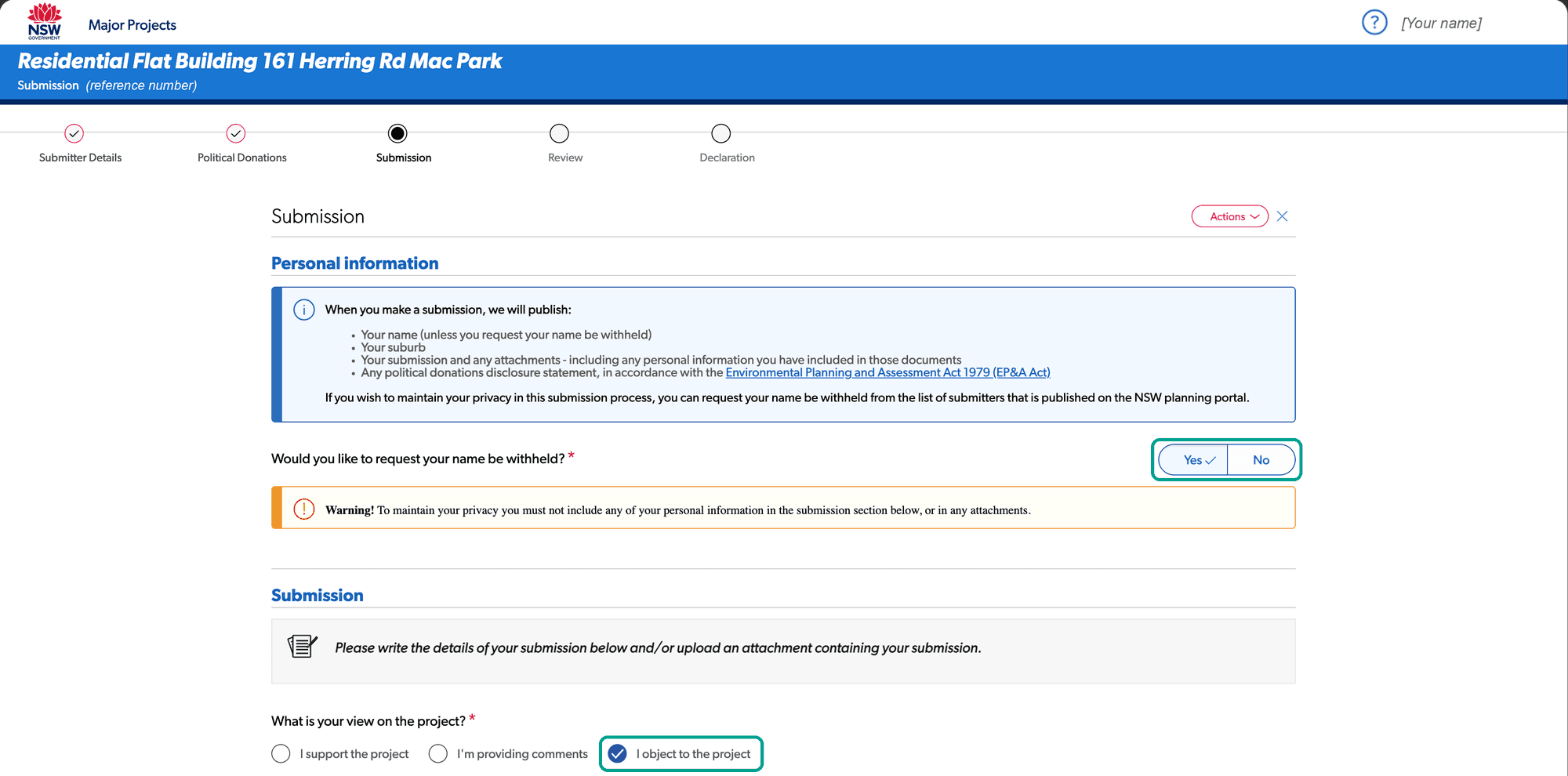
Choose whether to withhold your name, and tick "I object to the project". - 5
Paste in your submission, or upload it as a document, with any photos.
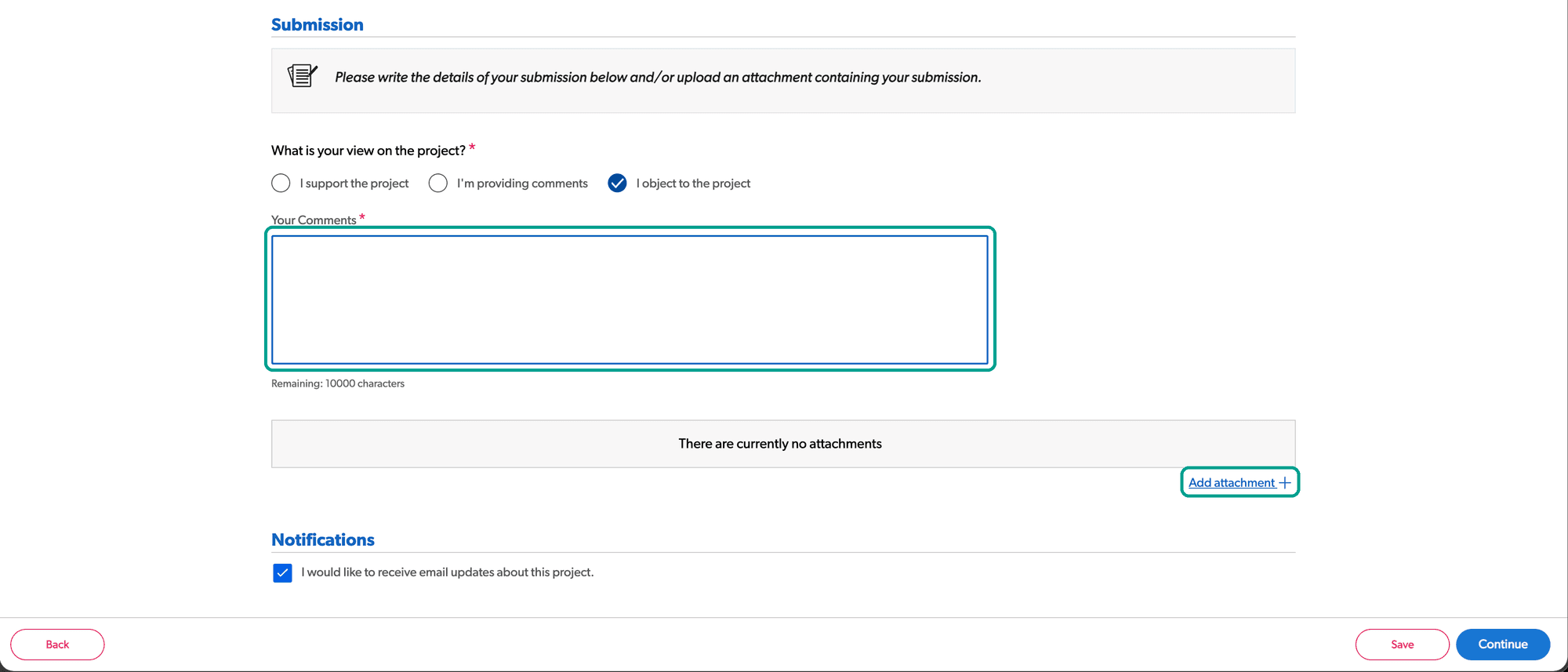
Paste in your submission, or upload it as a document. - 6
Review it, tick the declaration and submit. Keep the confirmation.
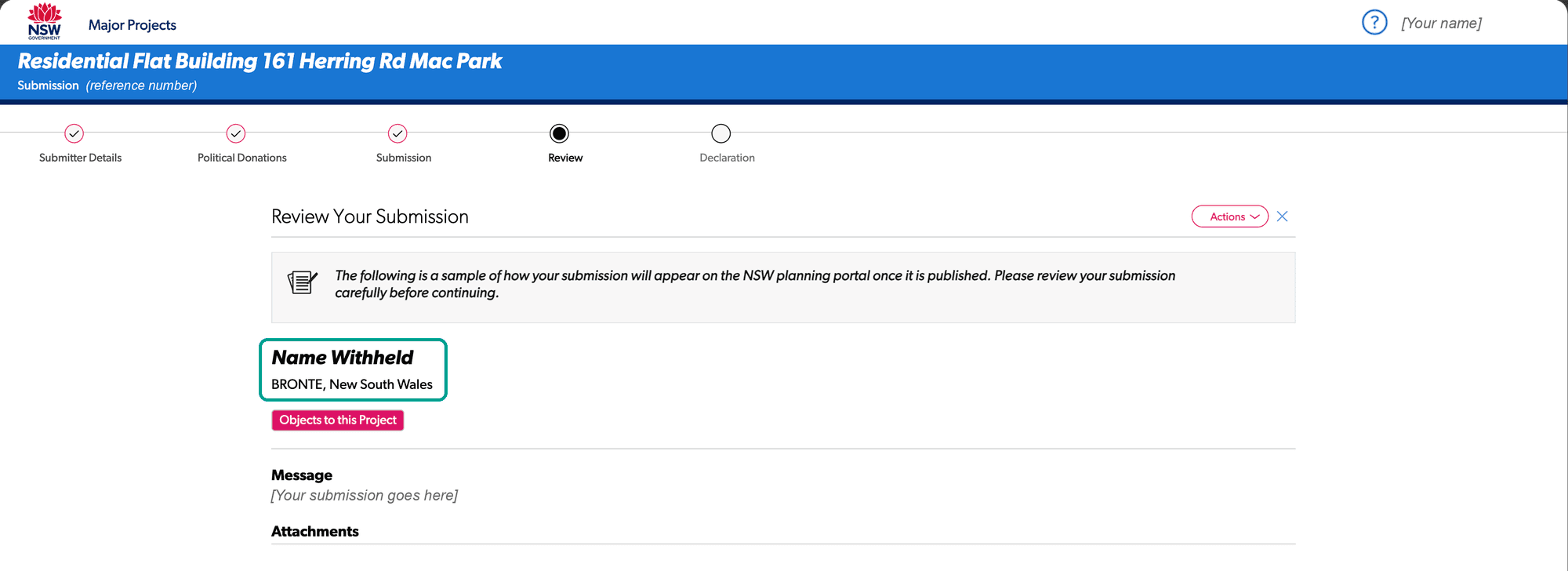
The Review screen shows exactly what will be published. 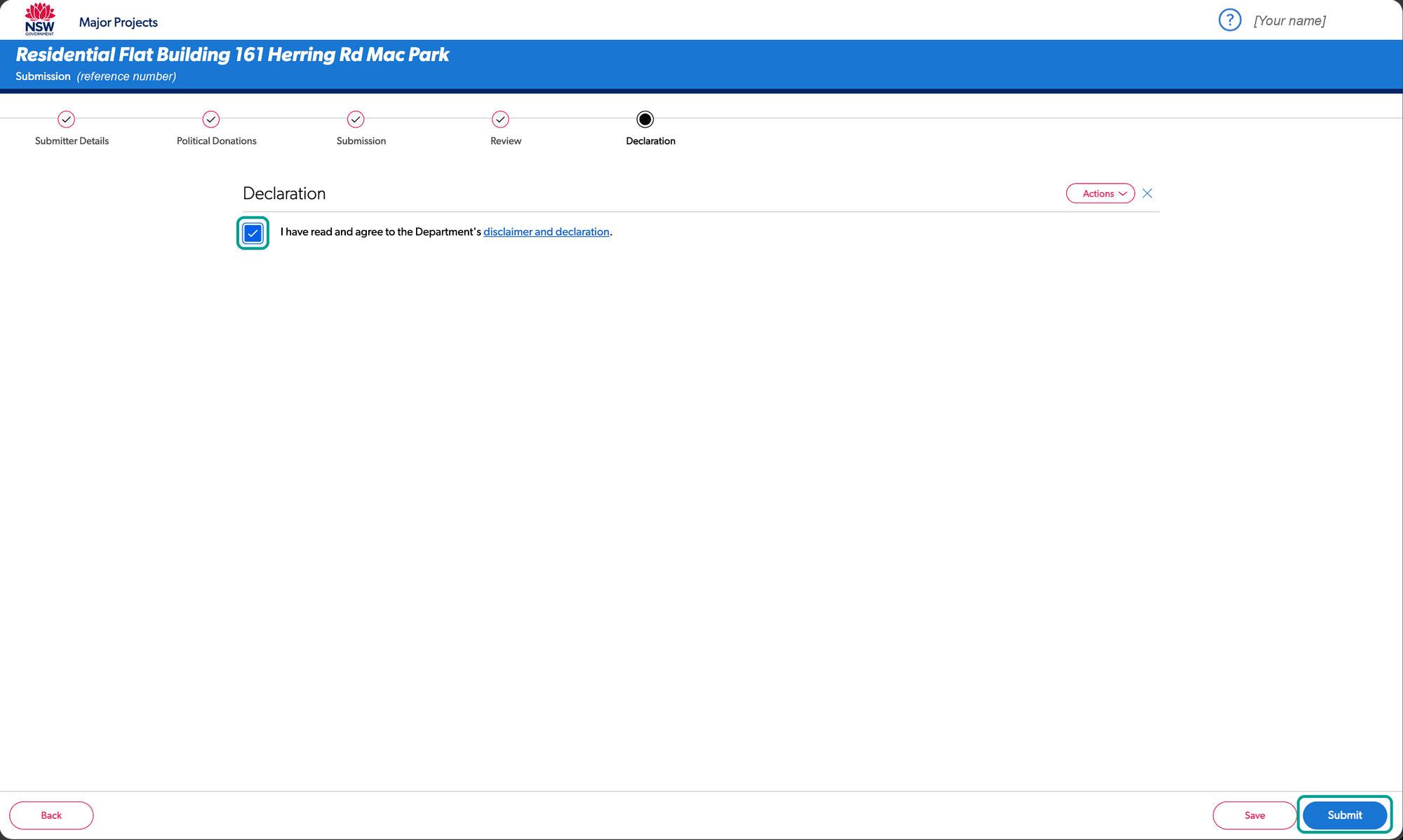
Tick the declaration, then click "Submit".

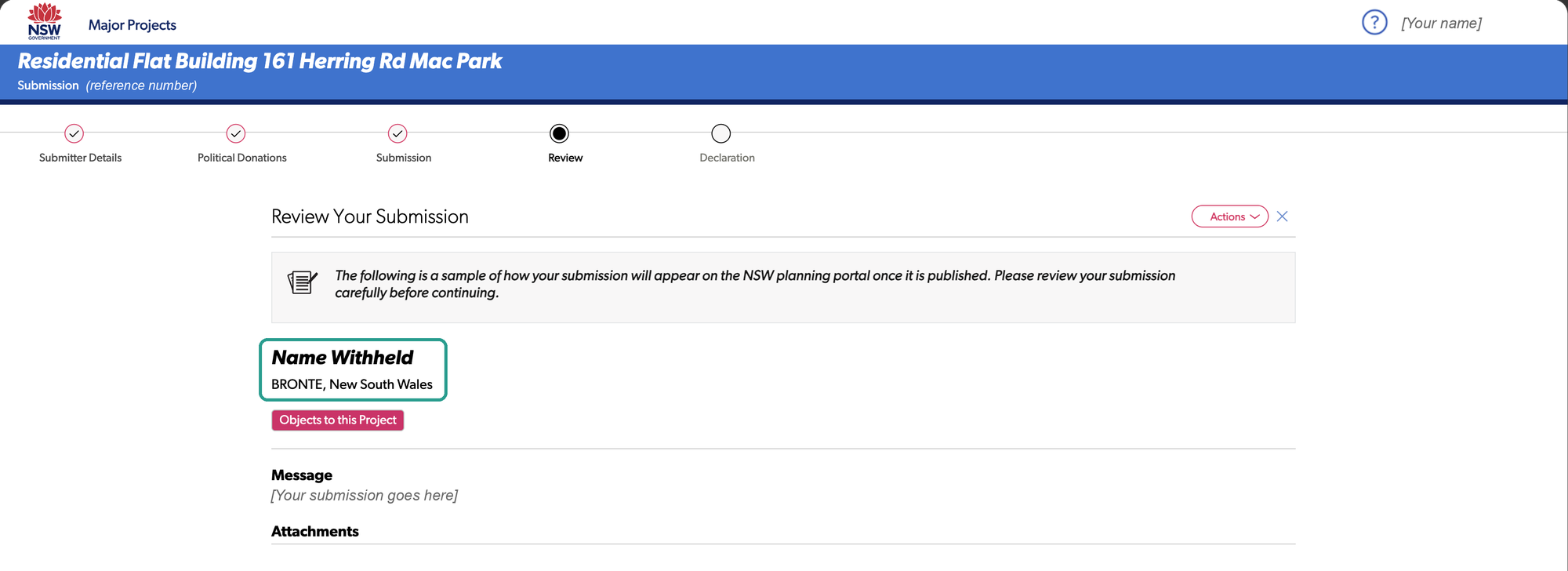
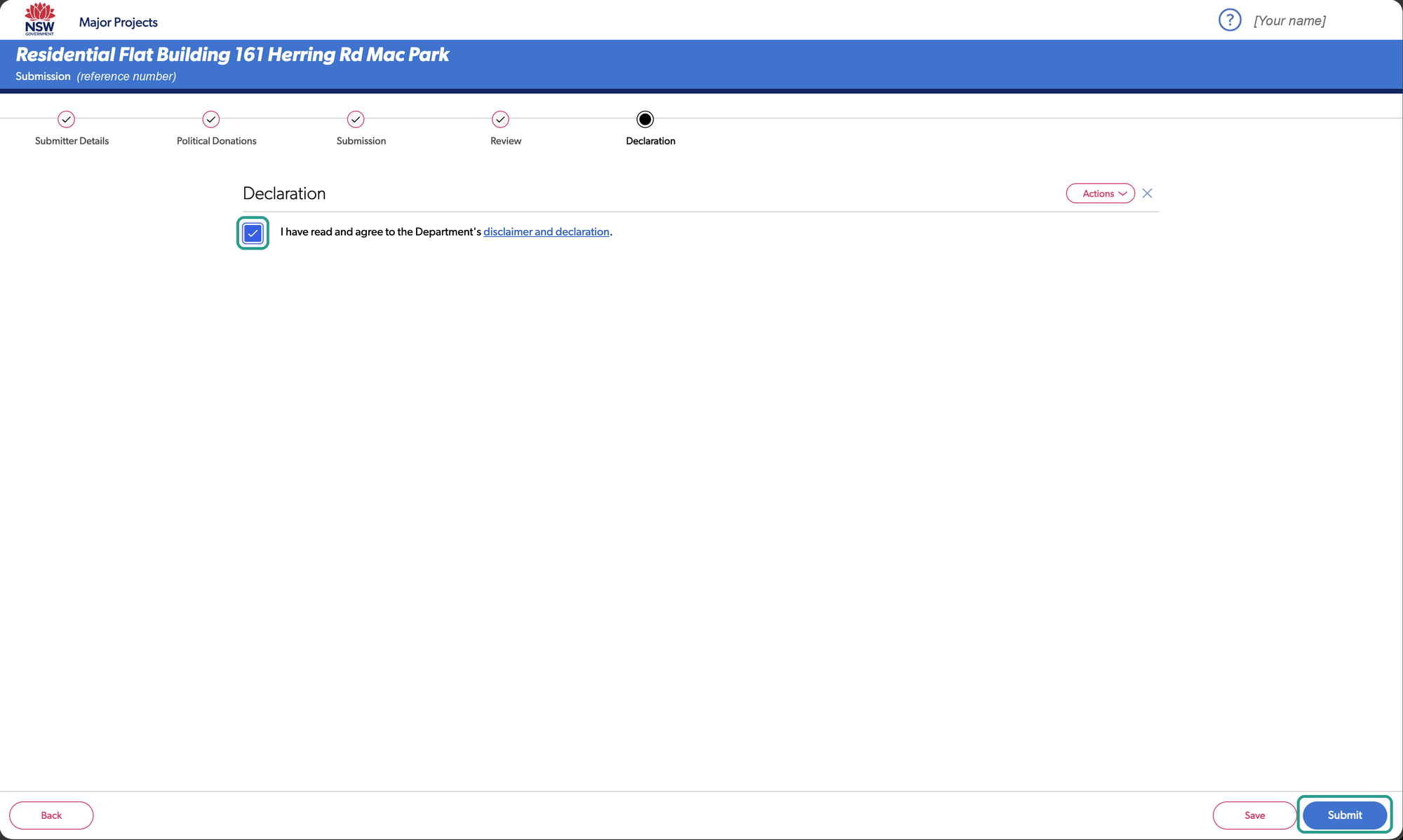
More
The project page is planningportal.nsw.gov.au/major-projects/projects/rfb-122-128-hewlett-street-bronte. If a link doesn't work, go to the Major Projects website and search for SSD-124072740, or open the list of projects on exhibition and filter by Waverley.
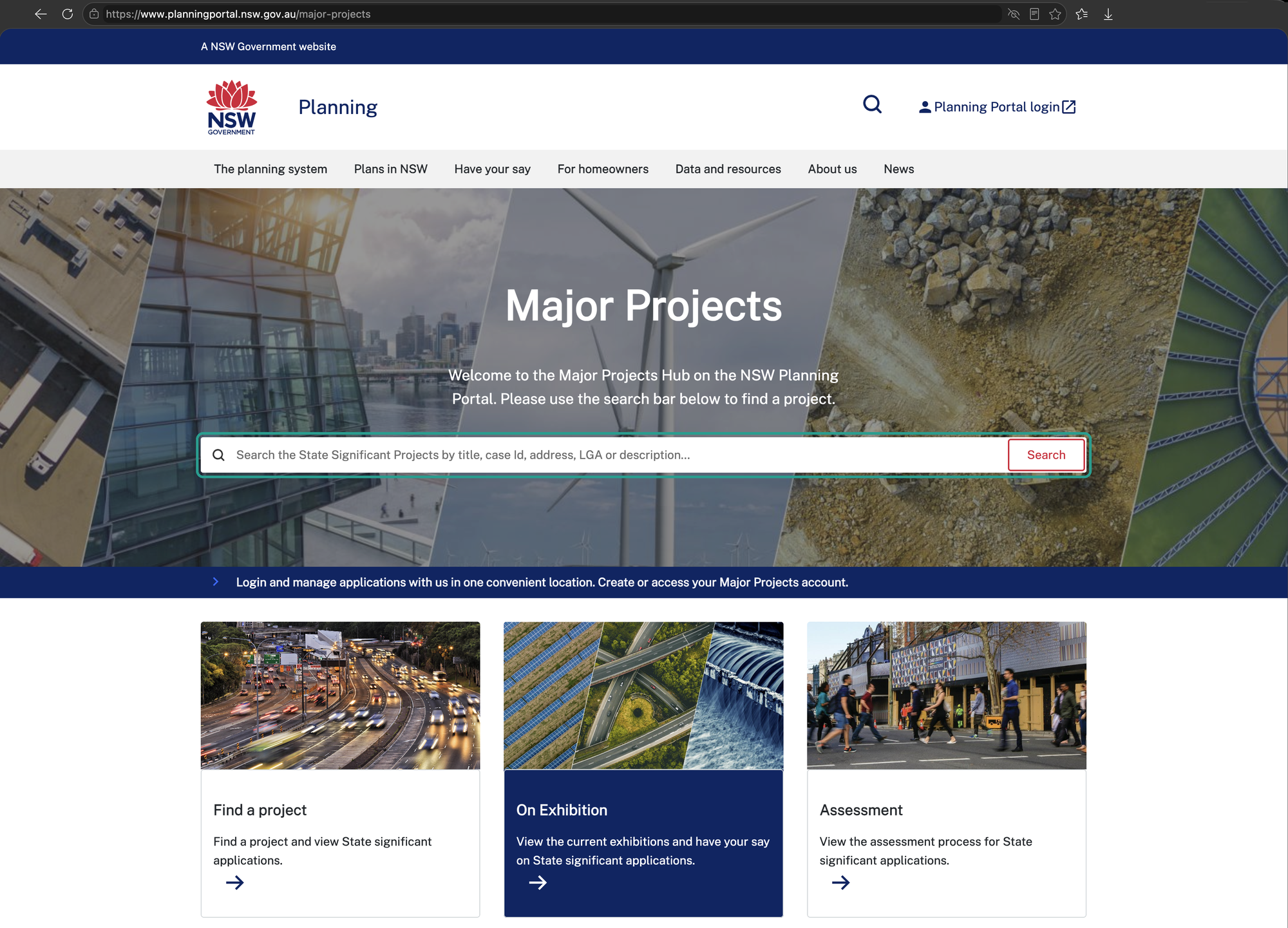
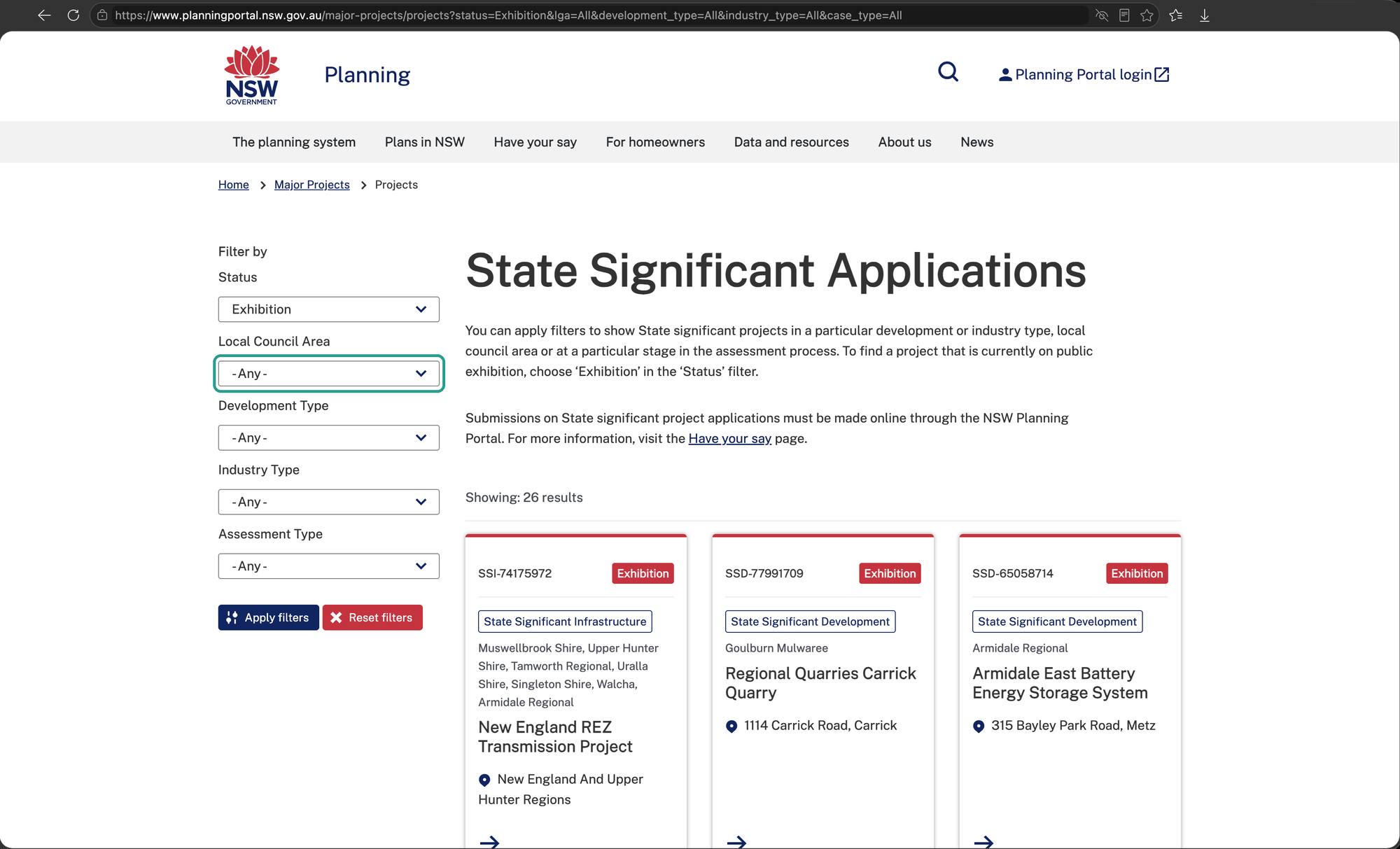
The "Make a submission" button only appears while the project is on exhibition, so you can't lodge early. Setting up your account beforehand means the day itself is just steps 1 to 6.
The form has five screens: Submitter Details, Political Donations, Submission, Review and Declaration. The text box takes 10,000 characters, about 1,500 words; upload anything longer as a document. The form has a Save button, so you can stop part-way and come back before the exhibition closes.
What is published, and how to keep your name off it, is in section 6.
9. A decision isn't the end
After the exhibition, Fortis must answer the issues raised, and the Department can ask for changes. The reasons for the decision must say how submissions were taken into account. Everything after the decision builds on what's on the record in the 14 days.